Arizer Go SRT Firmware 3.00: Heat Mode, PD Charging and How to Update
In short: Arizer Go SRT firmware 3.00 added adjustable oven power through HIGH and LOW Heat Mode settings, plus an improved PD charging handshake for better compatibility and more reliable charging. This guide explains those changes, how to check Arizer’s official updater and install firmware, and how to try Heat Mode with your usual dry herb preset.
What firmware 3.00 changed
Arizer’s official firmware release notes list version 3.00 as “New Heat Mode Settings + PD Charging Compatibility Update”. For owners, that means a choice of oven power during use and an improvement to the charging connection process.
- HIGH: provides faster heating and stronger extraction.
- LOW: uses less power for longer battery life and more gradual extraction.
- PD charging: an improved Power Delivery handshake supports better compatibility and more reliable charging.
Heat Mode gives you another way to choose the pace of a session. Arizer does not provide a specific runtime figure for LOW, so there is no extra number of minutes to promise.

How to check for and install firmware
Firmware is the software running inside your vaporiser. Arizer says updates may be released periodically to add features, improve performance and fix bugs. Use its official updater to check for the latest Go SRT firmware and follow the procedure supplied there.
- Open Arizer’s official Firmware Updates page.
- Select Go SRT, then Install Latest Firmware.
- Connect your Go SRT to a computer and follow Arizer’s update procedure.
Our general advice is to follow the on-screen steps on Arizer’s page and keep the Go SRT connected until the updater says it has finished. You can also sign up there for email notifications about future Go SRT firmware.
Where to find Heat Mode
The v3.00 operating instructions explain how to reach the setting: press and hold DOWN to open Settings, navigate with UP and DOWN, and press ACTION to select. Look for HEAT MODE, which offers LOW and HIGH oven power options.
The Settings menu also includes units, sound, vibration, backlight, inversion, lock and auto-off. Auto-off offers 20, 40 or 60 minutes. When exploring firmware 3.00, focus first on Heat Mode so you can compare its two options without changing several settings together.

Choosing between HIGH and LOW
Our suggestion is to try HIGH if you want faster heat-up or prefer denser draws. If you use the Go WPA included in the box to connect to a water pipe or bubbler, you could compare both modes with that setup too.
We suggest LOW for longer, gentler sessions or when you want to stretch the battery. Start with the same preset temperature and similar dry herb in both modes. Keep the rest of your routine consistent, then decide which extraction pace you prefer. These are suggestions for exploring the setting, rather than promises about individual results.
Eco Charging is a separate feature
Firmware 2.03 introduced Eco Charging; version 1.04 was the original release. Arizer’s Eco Charging leaflet says the device charges to 80% by default and then stops. To charge to 100%, press and hold UP while the device is connected to power.
In other words, Heat Mode adjusts oven power during use, while Eco Charging controls how far the battery charges.
Exploring your Go SRT setup
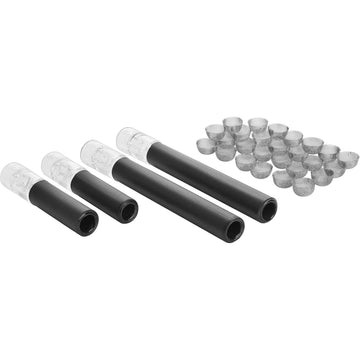
The Arizer Go SRT uses Session Refresh Technology (SRT) and the Go Shells capsule system. Once you have compared firmware 3.00’s Heat Modes, browse our ArGo & Go SRT stems and accessories if you would like to explore your setup further.